JumpCloud
Connect JumpCloud to Dessn with a custom OIDC app (recommended) or a custom SAML app, field by field.
These steps match JumpCloud's Admin Portal as of November 2026. You need to be an owner of your Dessn team, and an admin in JumpCloud. SSO is rolling out to Enterprise teams, switched on per team by Dessn: see the overview for how it works and what it checks.
Choose one:
- OpenID Connect (recommended): the fewest fields, and nothing to update when JumpCloud's signing certificate changes.
- SAML 2.0: if your policy prefers SAML.
Before you start: in Dessn
Verify your domain
Open create.dessn.ai/w/settings/security. Under Domains, add your email domain, add the TXT record Dessn shows at your DNS provider, then press Verify. See Verify your domain.
Choose OIDC or SAML
Under Identity provider, choose OIDC or SAML. Dessn shows the values JumpCloud asks for, with your connection key filled in. Keep this tab open.
Create the app in JumpCloud
Both apps start the same way:
- In the JumpCloud Admin Portal, go to Access › SSO Applications and press + Add. The Create New Application Integration dialog opens.
- Select Application: find the Custom Application tile (Dessn isn't in JumpCloud's catalog), press Select, then Next.
- Select Options: tick Manage Single Sign-On (SSO), choose Configure SSO with OIDC or Configure SSO with SAML, then press Next.
- Enter General Info: set Display Label to Dessn. Keep Show this application in User Portal ticked if you want a Dessn tile in the User Portal. Press Next.
- Review: press Configure Application. The app opens on its SSO tab.
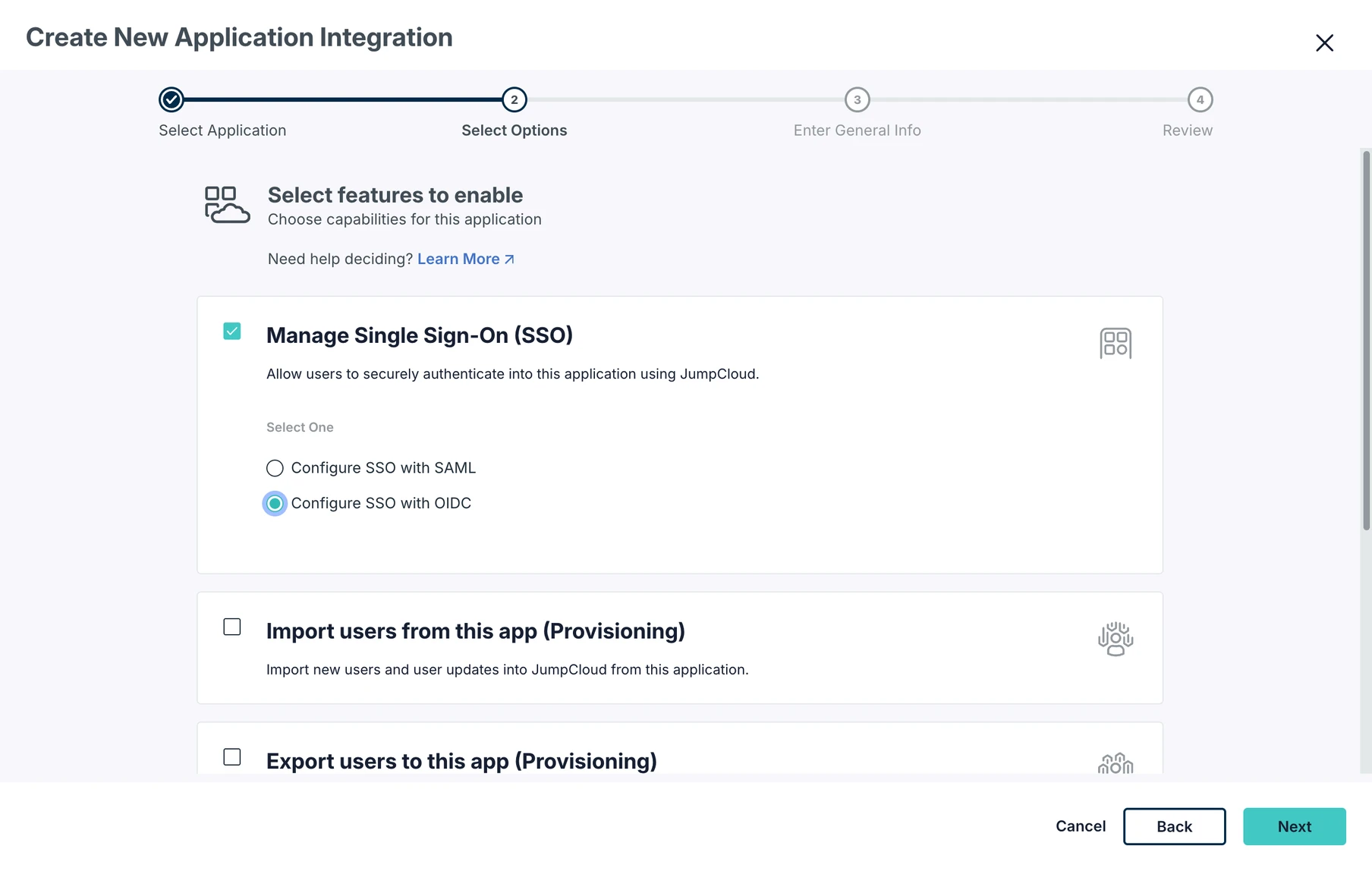
JumpCloud with OpenID Connect (recommended)
Fill in the SSO tab
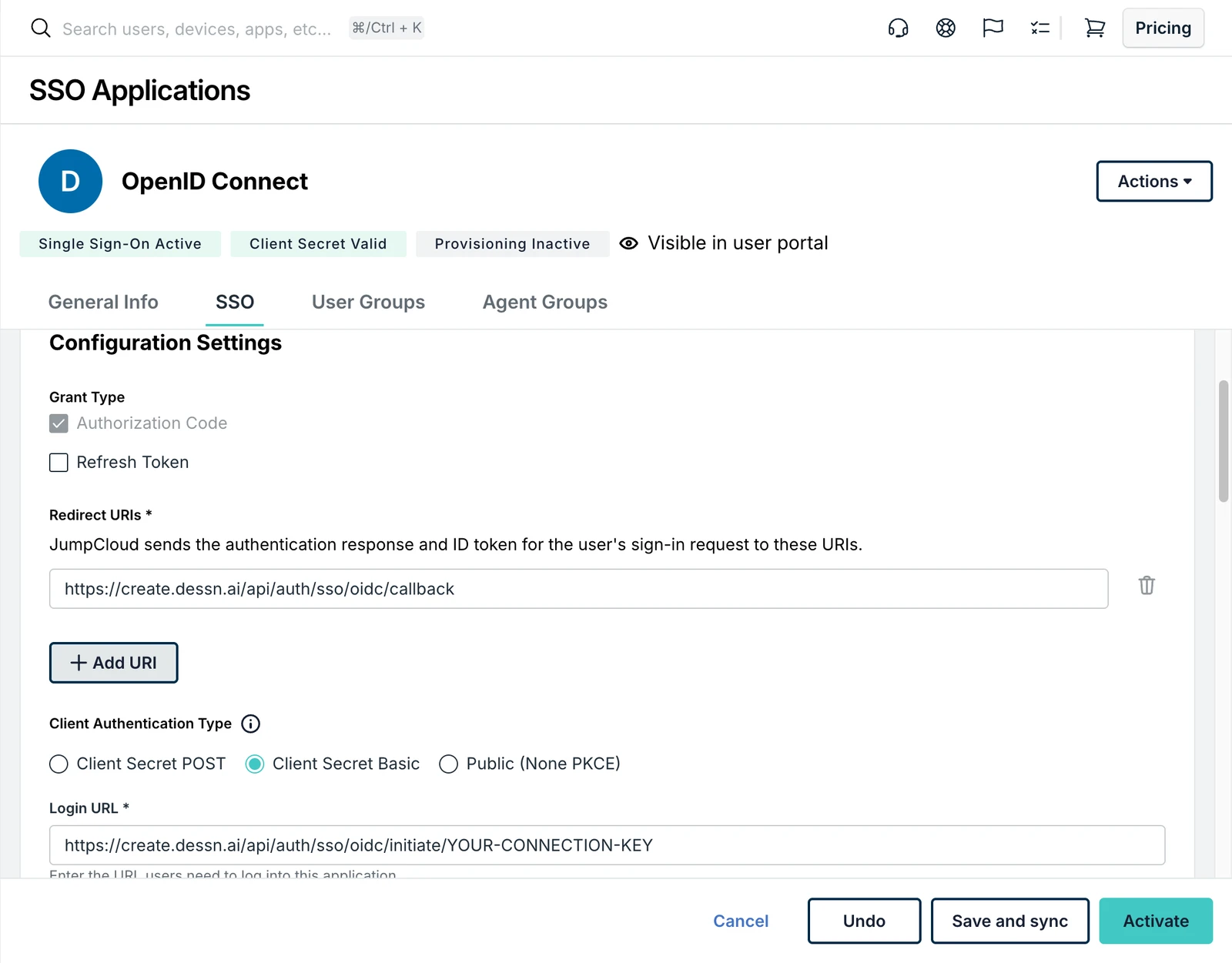
Create the app with Configure SSO with OIDC (above). On the SSO tab, under Configuration Settings:
| Field | Value |
|---|---|
| Grant Type | Authorization Code (always on). Leave Refresh Token unticked |
| Redirect URIs | https://create.dessn.ai/api/auth/sso/oidc/callback |
| Client Authentication Type | Client Secret Basic (recommended). Client Secret POST, JumpCloud's default, works too: JumpCloud refuses the method its app isn't set to, so Dessn tries the other one. Not Public (None PKCE) |
| Login URL | https://create.dessn.ai/api/auth/sso/oidc/initiate/<connection-key>: copy Initiate login URI from Dessn. The User Portal tile opens it |
| Subject Claim | Leave JumpCloud User ID (Recommended Default) |
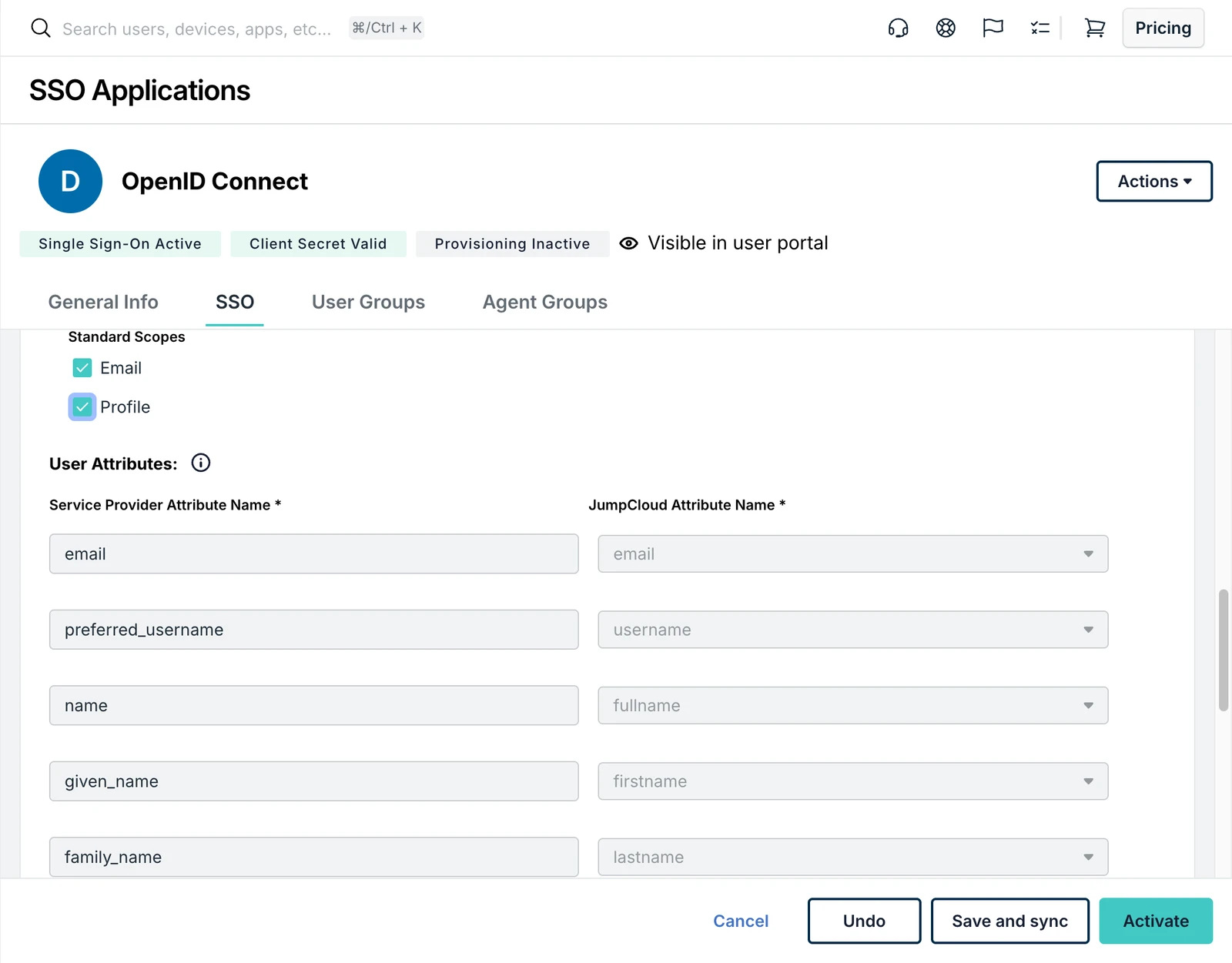
Turn on the Email and Profile scopes
Under Attribute Mapping, tick Email and Profile in Standard Scopes. Both start unticked, and Email is
required: without it, JumpCloud sends Dessn no email address and the sign-in is refused. They add the attributes
Dessn reads: email, email_verified, name, given_name and family_name. Leave Include Group Attribute off.
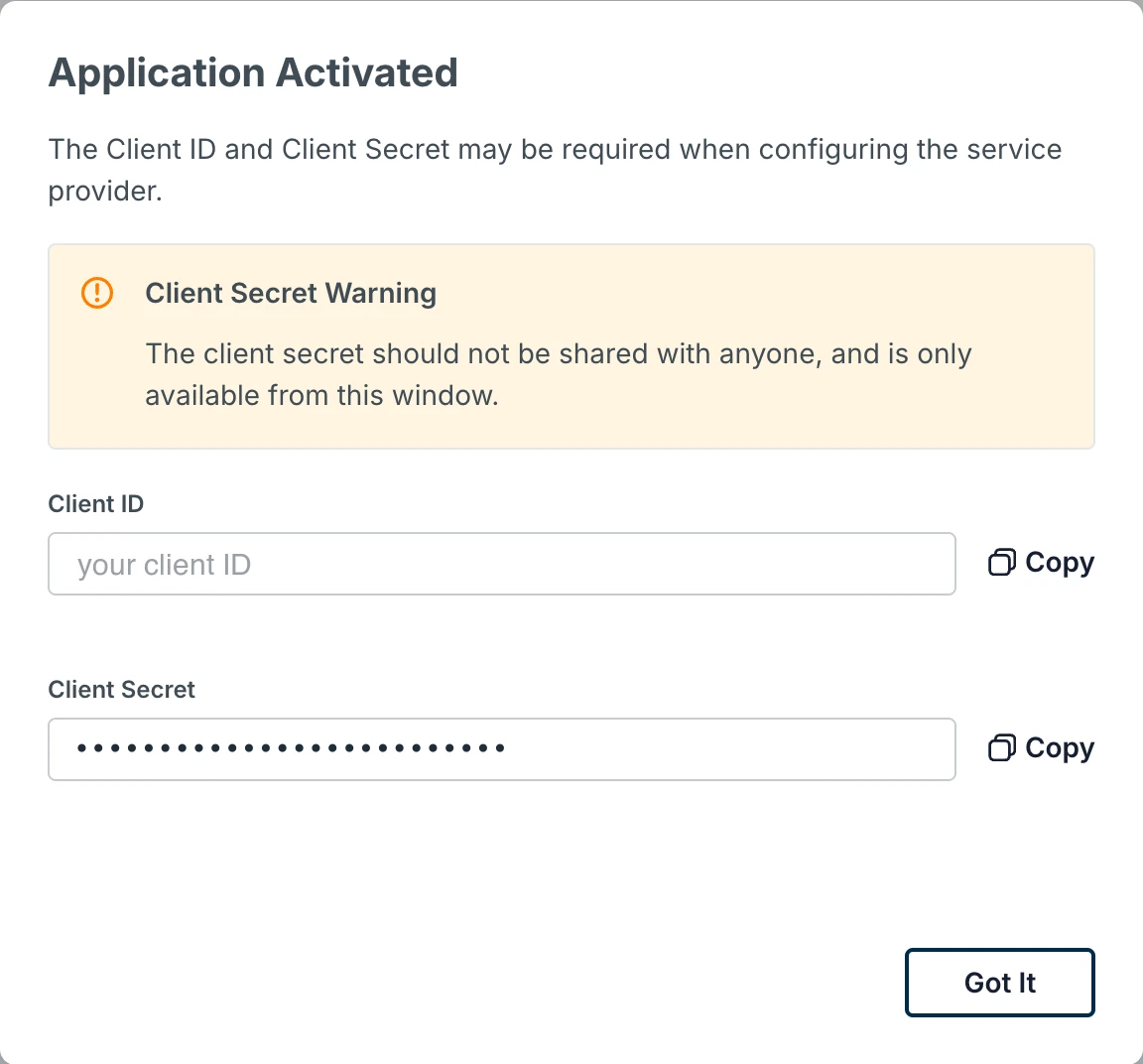
Activate, and copy the client ID and secret
Press Activate. The Application Activated dialog shows the Client ID and Client Secret. JumpCloud shows the secret only in this dialog, so copy both now.
Choose who can use Dessn
On the User Groups tab, tick the groups who should use Dessn, then press Save. People outside those groups can't sign in to Dessn through JumpCloud.
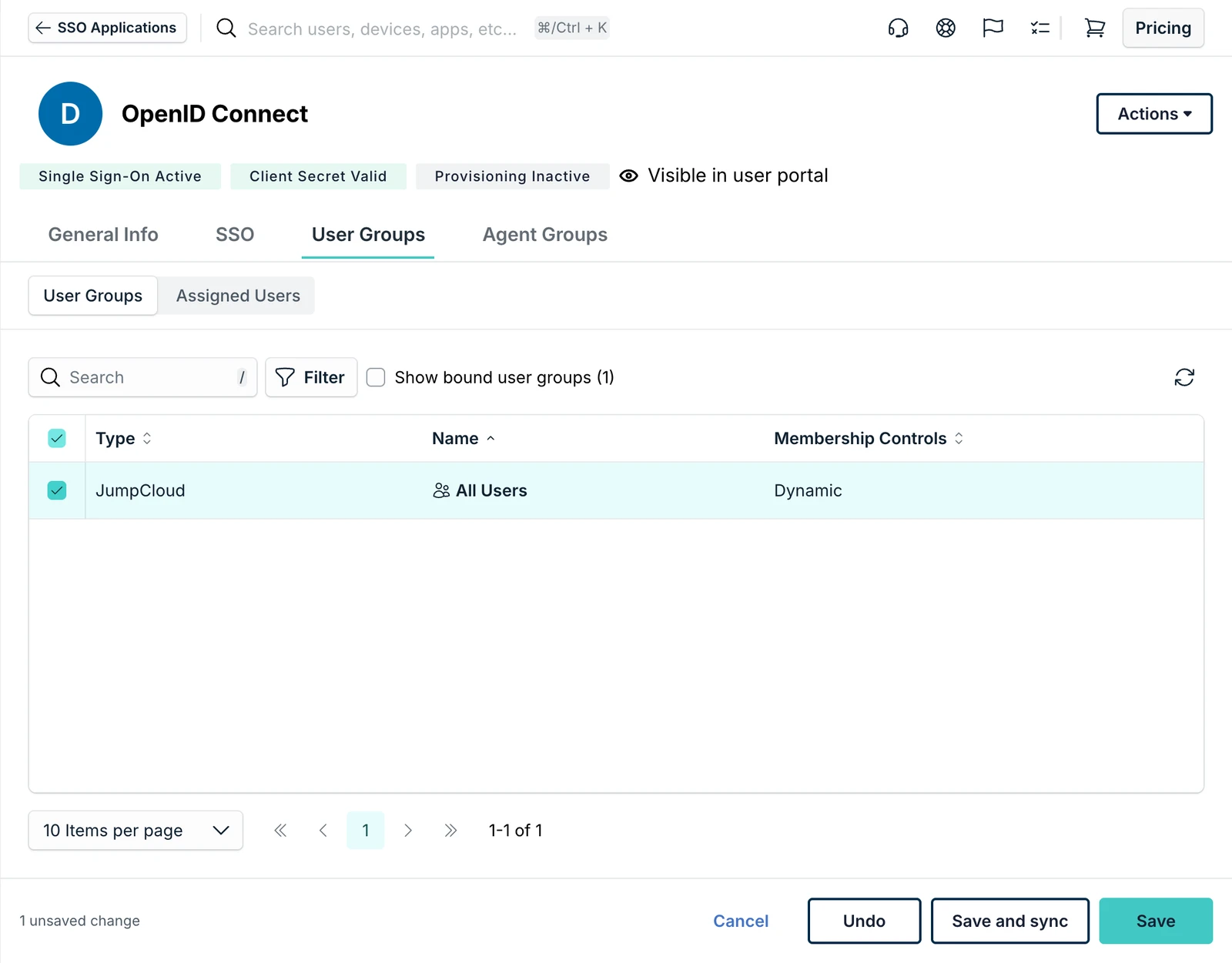
Connect it in Dessn
In Dessn's Identity provider, with OIDC chosen, enter:
| Field in Dessn | Value |
|---|---|
| Issuer URL | https://oauth.id.jumpcloud.com/ The same for every JumpCloud organization. Keep the trailing slash |
| Client ID | From the Application Activated dialog |
| Client secret | From the Application Activated dialog |
| New people join as | Editor or Viewer |
Press Save. Dessn reads JumpCloud's discovery document and says so.
Test, then turn it on
Under Sign-in, press Test sign-in and sign in through JumpCloud as yourself. Then turn on Single sign-on. Optionally, turn on Require SSO (what it does).
JumpCloud with SAML 2.0
Rolling out after OpenID Connect
SAML 2.0 is switched on after OpenID Connect. You can set your IdP up with the values below now; ask us when you want SAML on for your team. If your IdP supports OpenID Connect, that is the quickest way in.
Fill in the SSO tab
Create the app with Configure SSO with SAML (above). On the SSO tab, under Configuration Settings:
| Field | Value |
|---|---|
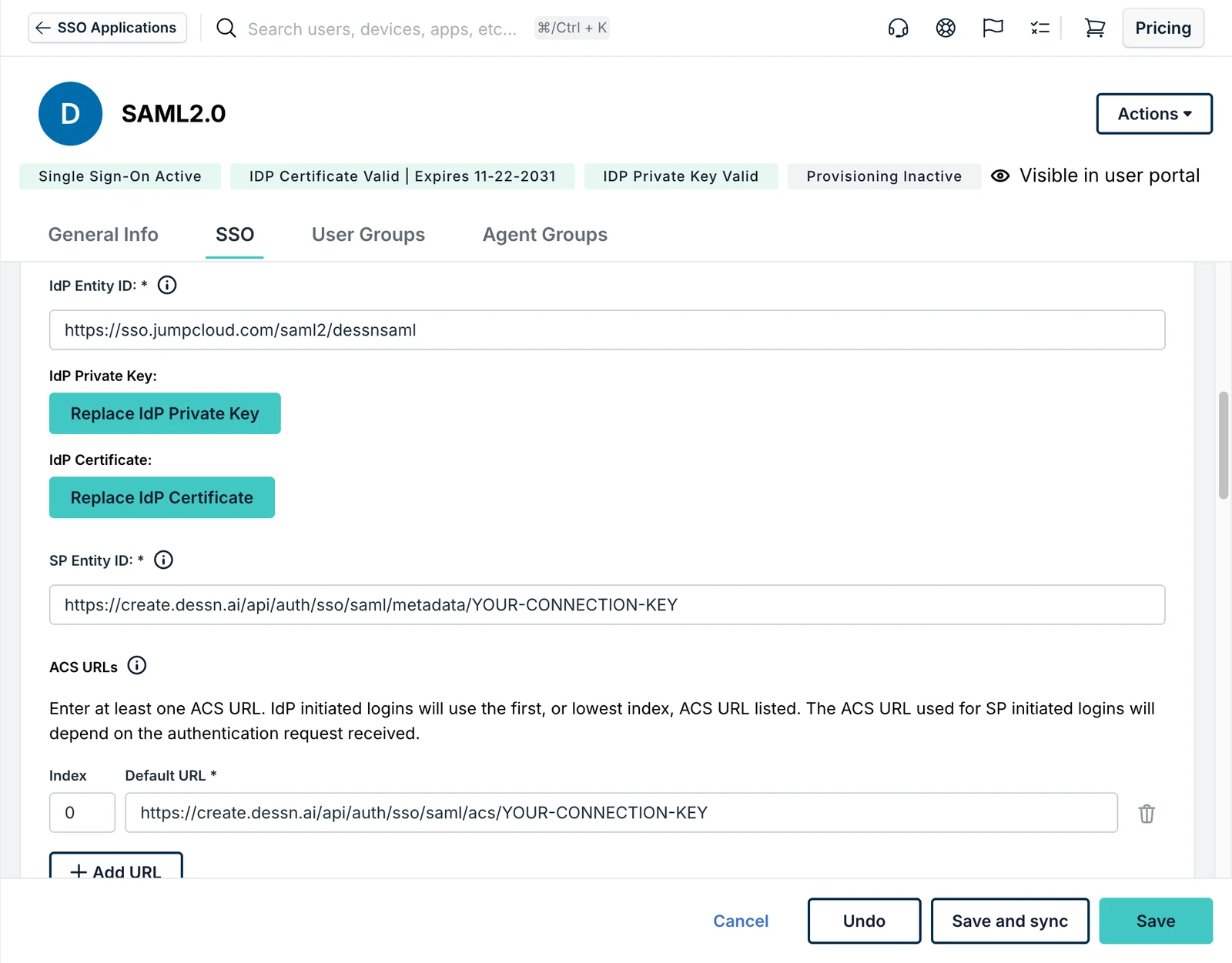
| IdP Entity ID | Any unique value for JumpCloud's side, for example https://sso.jumpcloud.com/saml2/dessn |
| IdP Private Key, IdP Certificate | Leave them as JumpCloud made them |
| SP Entity ID | https://create.dessn.ai/api/auth/sso/saml/metadata/<connection-key>: copy SP Entity ID (Audience URI) from Dessn |
| ACS URLs › Default URL | https://create.dessn.ai/api/auth/sso/saml/acs/<connection-key>: copy ACS URL (Single sign-on URL) from Dessn |
| SP Certificate | Leave empty |
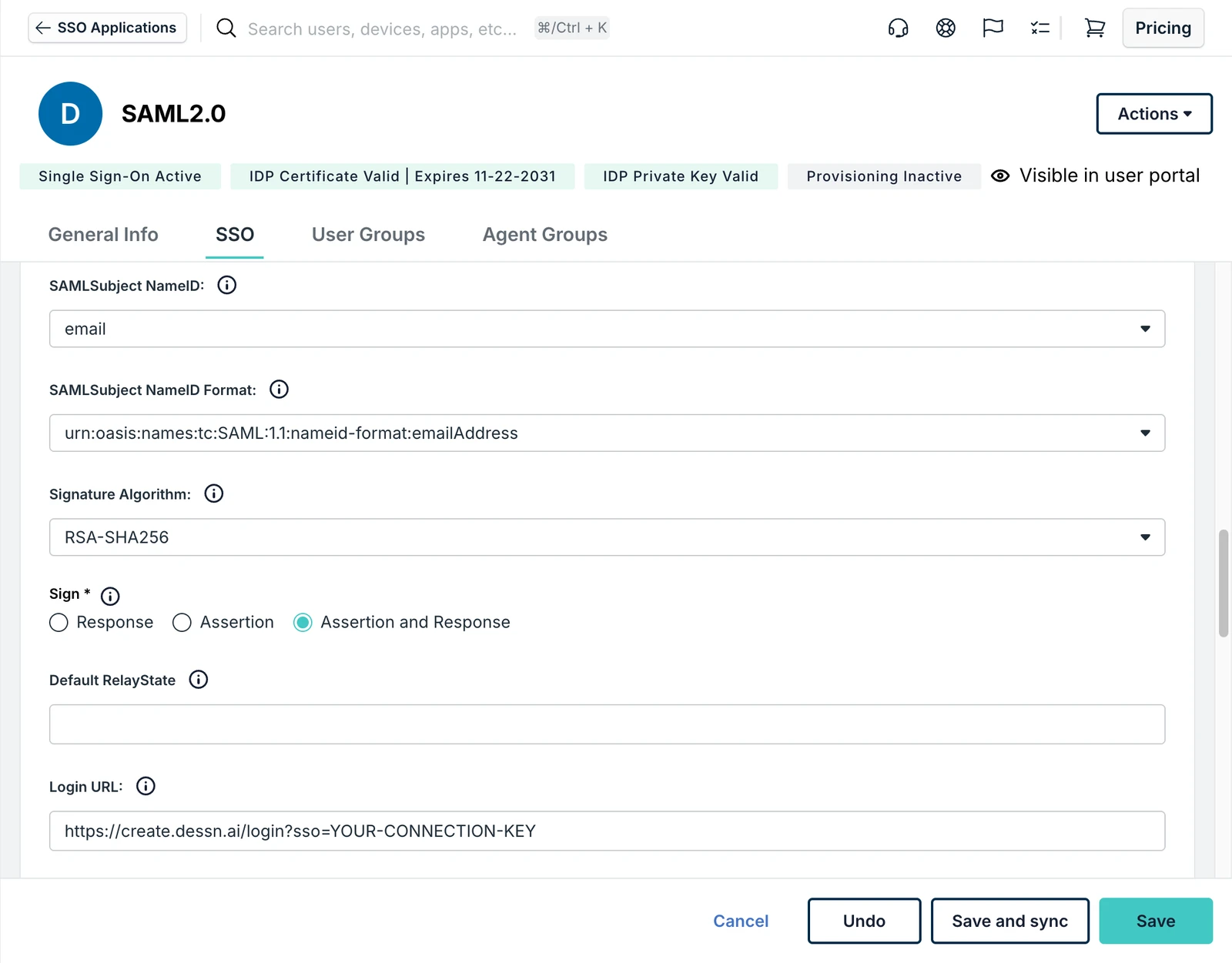
| SAMLSubject NameID | |
| SAMLSubject NameID Format | Change it to urn:oasis:names:tc:SAML:1.1:nameid-format:emailAddress (the default is unspecified) |
| Signature Algorithm | RSA-SHA256. Dessn refuses RSA-SHA1 |
| Sign | Assertion and Response (or Assertion). See below |
| Default RelayState | Leave empty |
| Login URL | https://create.dessn.ai/login?sso=<connection-key>: copy Login URL (app tile) from Dessn. The User Portal tile then starts Dessn's own sign-in |
| Declare Redirect Endpoint | Off |
| Send failure response to the Service Provider | Off |
| IdP URL | Keep JumpCloud's value. It becomes read-only once saved, and Dessn reads it from the metadata |
Sign the assertion
JumpCloud's default for Sign is Response, which signs only the outer response. Dessn requires the assertion itself to be signed, and refuses every sign-in from an app left on Response.
Add the attributes
Under Attributes, in User Attributes, use Add Attribute for each row:
| Service Provider Attribute Name | JumpCloud Attribute Name |
|---|---|
| firstName | firstname |
| lastName | lastname |
Leave Include Group Attribute off.
Activate, and choose who can use Dessn
Press Activate. On the User Groups tab, tick the groups who should use Dessn, then press Save. People outside those groups can't sign in to Dessn through JumpCloud.
Copy JumpCloud's metadata
Back on the SSO tab, under JumpCloud Metadata, press Copy Metadata URL. Or press Export Metadata to download the XML file.
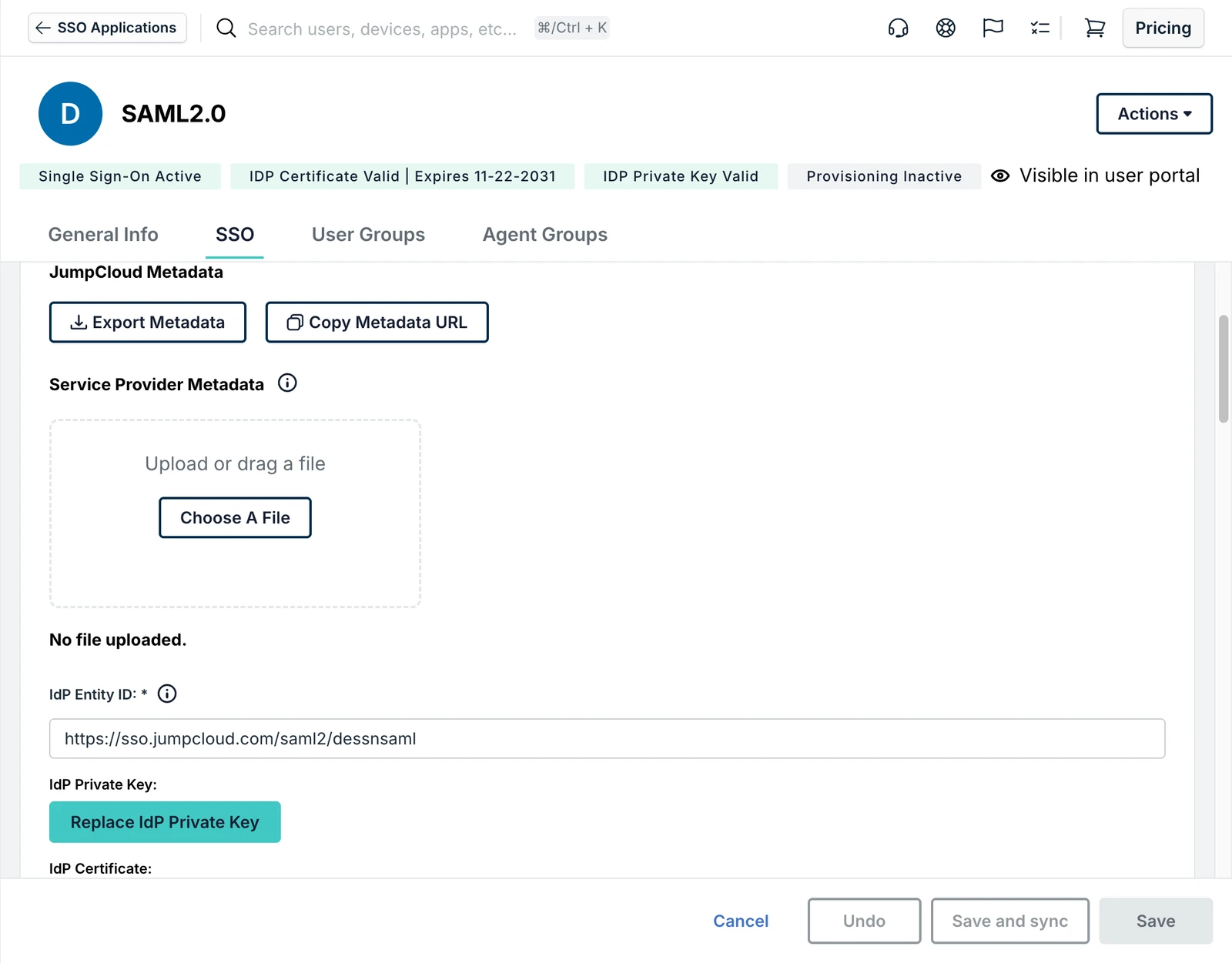
Connect it in Dessn
In Dessn's Identity provider, with SAML chosen, paste the URL into Metadata URL, or put the XML file in Metadata XML (paste it, or Upload a file). Choose New people join as: Editor or Viewer, then press Save. Dessn reads JumpCloud's entity ID, sign-in URL and signing certificate from the metadata.
Test, then turn it on
Under Sign-in, press Test sign-in and sign in through JumpCloud as yourself. Then turn on Single sign-on. Optionally, turn on Require SSO (what it does).
JumpCloud's signing certificate lasts five years; Dessn's Security settings show when it expires. After you replace it in JumpCloud, press Save on the connection in Dessn so it reads the new metadata. Until then, Dessn refuses sign-ins signed with the new certificate.
Troubleshooting
| If the Dessn login page says | Check this in JumpCloud |
|---|---|
| Your company's sign-in didn't let you in. | The person isn't in a group ticked on the app's User Groups tab. |
| Your company's sign-in didn't share an email address with Dessn. | OIDC: tick Email in Standard Scopes. SAML: set SAMLSubject NameID to email with the emailAddress format, or add the email attribute. |
| We couldn't confirm that sign-in with your company's identity provider. | SAML: set Sign to Assertion and Response (or Assertion), and Signature Algorithm to RSA-SHA256. Check the SP Entity ID and ACS URL match Dessn's exactly. OIDC: check the client ID and secret, and the issuer's trailing slash. |
| That address isn't on a domain this team has verified for single sign-on. | The person's JumpCloud email is on a domain your Dessn team hasn't verified. Verify that exact domain in Dessn. |
| That sign-in took too long and expired. | Start again: a sign-in attempt lasts 10 minutes. |
Titles set in Kalice, Claude Type, designed by Margot Lévêque.